CONTROLS · OBSERVED BROWSER BUILD
Find the right camera before you purge
If you switch cameras and still see “WARNING: ANOMALY DETECTED”, do not assume the new feed contains a second anomaly. In the build checked on 8 October 2026, that text can remain even when the visible entity is on another camera.
The four camera buttons
CAM 01 selects Main Hallway, CAM 02 selects Storage Room, CAM 03 selects Security Office, and CAM 04 selects Generator Bay. Read the label at the bottom left after switching to check which feed is active. These are the labels displayed in the running game, not four different difficulty tiers.
Use the camera buttons to examine the feeds. When you find the visible anomaly, keep that camera selected and press PURGE SIGNAL. The game’s supplied browser code checks whether the selected camera matches the anomaly’s camera. Pressing purge on another feed does not clear that anomaly.
Observed example: a warning on the wrong feed
During an automated browser check, an anomaly appeared naturally in CAM 02, Storage Room. It was visible as a red shape, and the top-right status changed to the warning. After selecting another camera, the red shape was no longer visible, but the warning text remained.
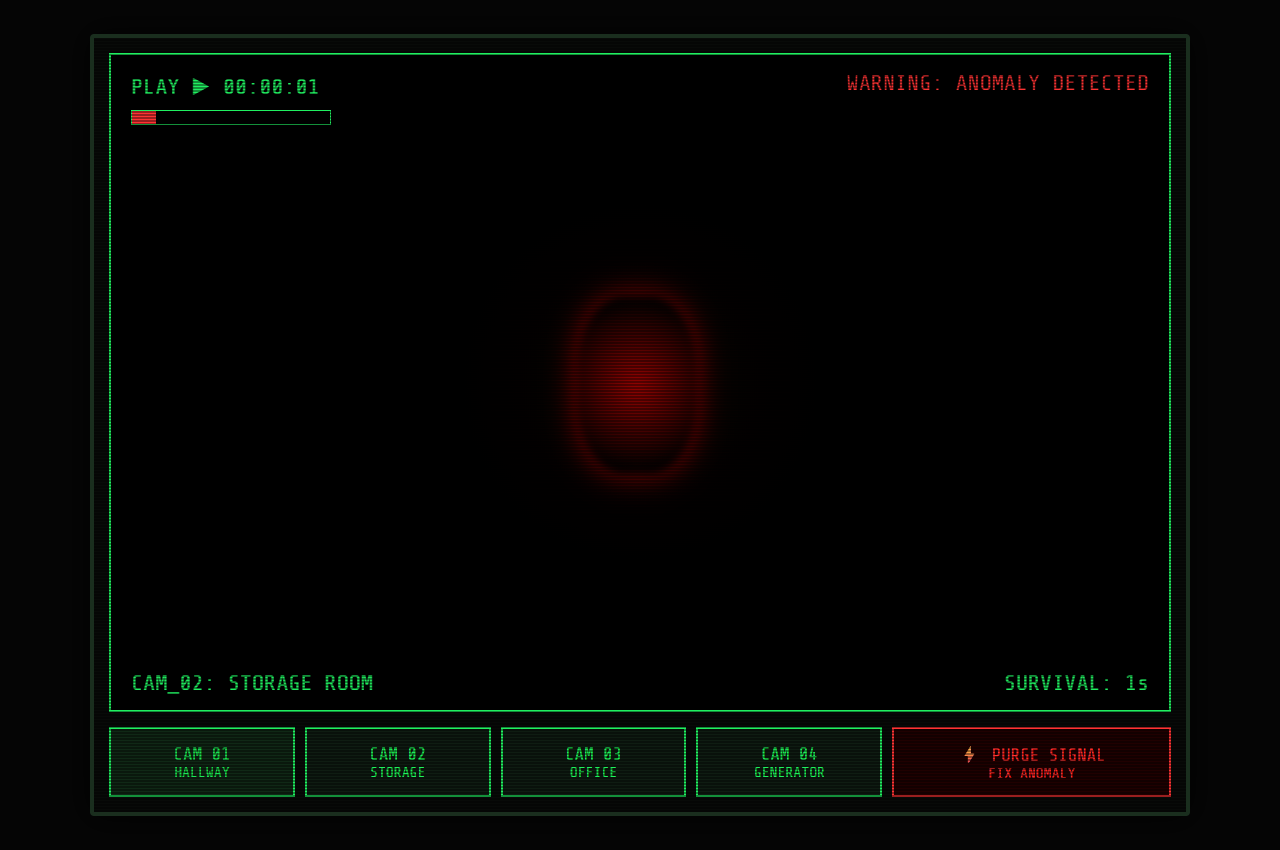
Returning to CAM 02 and pressing PURGE SIGNAL removed the shape. The status then became “SIGNAL: STABLE”. This is a useful distinction when learning the controls: a persistent warning means you should inspect the feeds, not repeatedly purge whichever camera is currently selected.
The checked code also explains the behavior. Switching away hides the entity; it does not reset the warning while an anomaly exists elsewhere. A successful purge clears the anomaly, reduces corruption and updates the display. Another anomaly can appear later, so a stable message is a description of that moment, not a guarantee that the run is safe.
A simple way to practice
- Open the official game and select each camera once to learn its label.
- Look at the image on each feed. If the warning persists, continue looking for the visible anomaly.
- Leave the affected feed selected, then press PURGE SIGNAL.
- Check that the visible anomaly disappears and the status changes, then resume inspecting feeds.
Checking cameras in a consistent order can help you remember what you have inspected. That is a suggested memory aid, not a tested optimal route. This guide does not establish a best interval between checks, a guaranteed survival time or a special priority for the Generator Bay.
The optional checklist below only records your own marks. It is separate from the game and will not update as the game changes. Use it while learning the labels if helpful; do not treat a checked box as live information about a feed.
Optional camera checklist
Mark feeds you have looked at, then reset for another pass. This is a manual memory aid. It cannot read the game, detect an anomaly or tell you that a camera is safe. Marks disappear on refresh.
No feeds marked yet.
Build and observation limits
This check covered switching all four feeds, a naturally appearing anomaly, the warning after switching away, and a successful purge after returning. It was performed by an automated browser agent. It was not a long survival session or a test of every possible browser and device.
The developer may replace the browser build. If the controls or warning behavior differ, follow what the current game displays and send the build details with your correction.
Read the source and observation log